Legend of YMIR Event BTC & WEMIX Rewards Notice
We are sharing important information for adventurers who have won BTC rewards through the Buddy Boost Lottery and the Lucky Totem Event in Legend of YMIR.
Event rewards will be distributed in BTC and WEMIX. BTC rewards will be delivered to your WEMIX PLAY Wallet in Binance Wrapped BTC(BBTC).
BBTC is an ERC-20 token officially supported by Binance, reflecting the value of Bitcoin (BTC) at a 1:1 ratio on the Ethereum network. (Token Contract Address : 0x9BE89D2a4cd102D8Fecc6BF9dA793be995C22541)
To view and manage your BBTC rewards, your WEMIX PLAY Wallet must be imported into MetaMask.
For a smooth reward claiming experience, please update your WEMIX PLAY App to the latest version before proceeding with the steps below.
• Google Play Store : https://play.google.com/store/apps/details?id=com.wemade.wemixplay
• App Store : https://apps.apple.com/app/id6547834517
BBTC distribution is scheduled for January 5, 2026, and a separate notice will be provided after the distribution is completed.
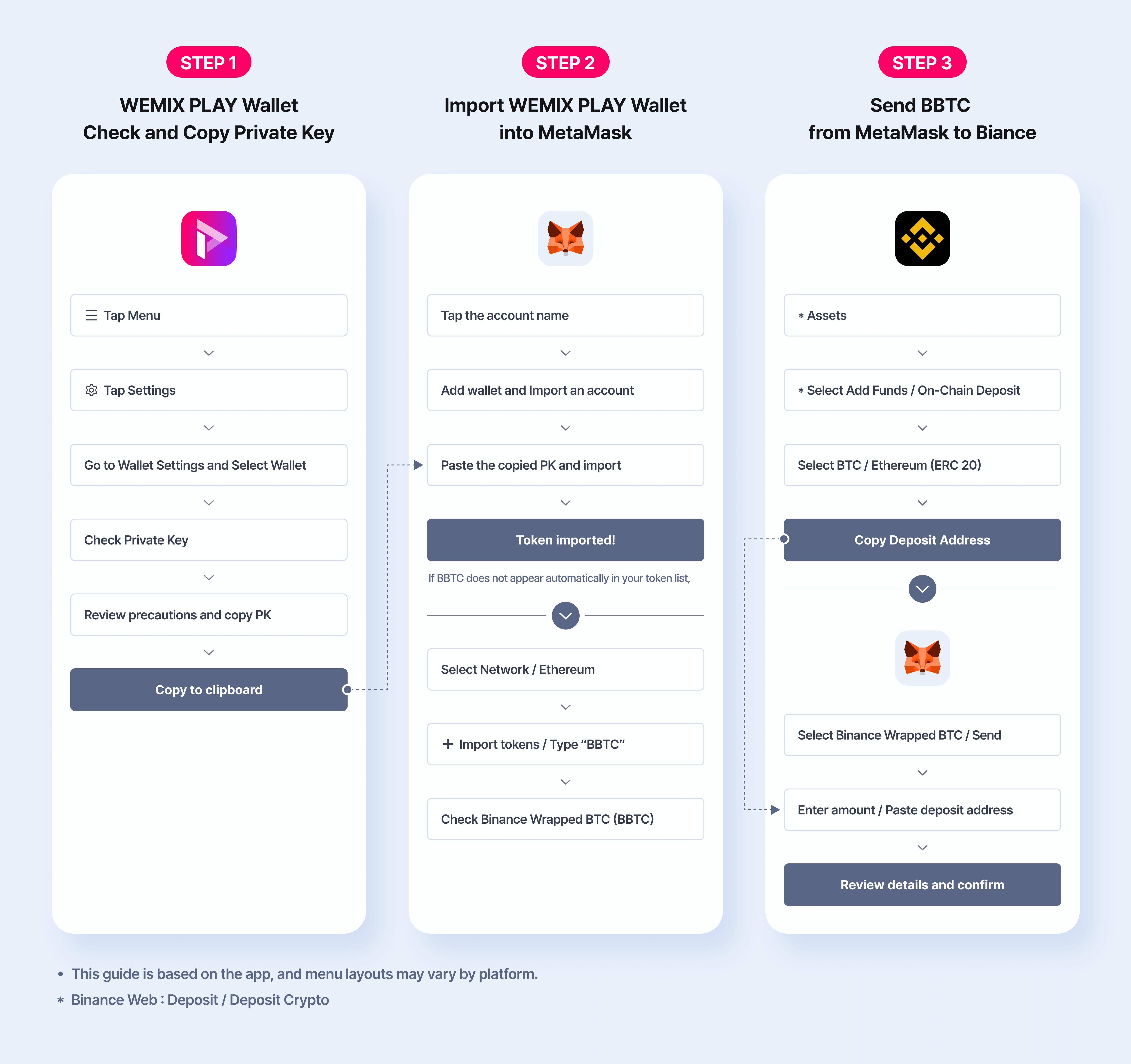
[BTC Reward Claim Flow Overview]
* Please check the attached image.
[How to import WEMIX PLAY Wallet into MetaMask]
1. Check Your Private Key(PK) in the WEMIX PLAY Wallet
1) Open the WEMIX PLAY App → Tap the menu (≡) in the top-right corner
2) Tap Settings icon
3) Select [Wallet Settings]
4) Select the wallet you will import into MetaMask
* Choose the wallet linked during your participation in the Valhalla Trials
5) Select [Wallet Settings] → [Check Private Key]
6) Tap [Check Private Key] at the bottom of the screen
7) Review the precautions and tap [Press to Check Private Key]
8) Tap [Copy to clipboard] to copy your PK
2. Import your WEMIX PLAY Wallet into MetaMask
1) Log in to MetaMask and tap the account name at the top-left
2) Select [Add wallet] at the bottom
3) Select [Import an account]
4) Paste the Private Key you copied in Step 1 → Tap [Import]
5) Wallet import complete
※ Please check that the BBTC you received is showing correctly and that the balance is accurate. If it doesn’t appear automatically in your token list, you can follow the steps in [Add BBTC Token to MetaMask] below to add it manually.
[Add BBTC Token to MetaMask]
1) Tap [Popular networks] at the bottom
2) Select [Ethereum]
3) Confirm that the [Ethereum] network is applied
4) Tap [+] → [Import tokens]
5) Type “BBTC”
6) Check Binance Wrapped BTC → Tap [Next]
7) Tap [Import]
8) BBTC added
3-1. Get Your Deposit Address on Binance
1) Open the Binance App → [Assets] → [Add Funds] (Web: [Deposit] in the upper-right corner)
2) Select [On-Chain Deposit] (Web: [Deposit Crypto])
3) Choose [BTC] under [Select Coin]
4) Choose ETH, Ethereum (ERC 20) under [Choose Network]
5) Copy the [Deposit Address]
3-2. Send BBTC from MetaMask to Binance
1) Open MetaMask → Select [Binance Wrapped BTC]
2) Tap [Send]
3) Enter the amount of BBTC to send
4) Paste the Binance Deposit Address you copied → Tap [Review]
5) Review the amount, address, and fee → Tap [Confirm]
* Sending BBTC will incur an ETH gas fee.
* A Binance account is required to receive your BBTC. Please prepare in advance, as account creation and KYC verification may take some time. For more details, please refer to the official Binance guides below.
• Binance Account Registration (How to Register on the Binance Website?) : https://www.binance.com/en/support/faq/detail/08f314ad219e45fc9b7a27b67801a5c4
• Crypto Deposit Guide (How to Deposit Crypto to Binance?) : https://www.binance.com/en/support/faq/detail/115003764971
[Important Notes]
1. Your Private Key grants full access to your assets. Do not share it with anyone under any circumstances.
2. When depositing to Binance, make sure to select the ERC-20 network. Using another network or entering an incorrect address will result in permanent asset loss.
3. The WEMIX PLAY Wallet interface does not display ERC-20 tokens, including BBTC. Even if it doesn’t appear in the app, your asset is safely stored.
4. To receive the reward, you must set your WEMIX PLAY active wallet by January 31, 2026. If the active wallet is not set by the deadline, the reward will not be distributed. Please make sure to complete the setup within the specified period.
Thank you to all adventurers who participated in the Legend of YMIR events.
We remain committed to delivering rewards safely and accurately.
Thank you.
We are sharing important information for adventurers who have won BTC rewards through the Buddy Boost Lottery and the Lucky Totem Event in Legend of YMIR.
Event rewards will be distributed in BTC and WEMIX. BTC rewards will be delivered to your WEMIX PLAY Wallet in Binance Wrapped BTC(BBTC).
BBTC is an ERC-20 token officially supported by Binance, reflecting the value of Bitcoin (BTC) at a 1:1 ratio on the Ethereum network. (Token Contract Address : 0x9BE89D2a4cd102D8Fecc6BF9dA793be995C22541)
To view and manage your BBTC rewards, your WEMIX PLAY Wallet must be imported into MetaMask.
For a smooth reward claiming experience, please update your WEMIX PLAY App to the latest version before proceeding with the steps below.
• Google Play Store : https://play.google.com/store/apps/details?id=com.wemade.wemixplay
• App Store : https://apps.apple.com/app/id6547834517
BBTC distribution is scheduled for January 5, 2026, and a separate notice will be provided after the distribution is completed.
[BTC Reward Claim Flow Overview]
* Please check the attached image.
[How to import WEMIX PLAY Wallet into MetaMask]
1. Check Your Private Key(PK) in the WEMIX PLAY Wallet
1) Open the WEMIX PLAY App → Tap the menu (≡) in the top-right corner
2) Tap Settings icon
3) Select [Wallet Settings]
4) Select the wallet you will import into MetaMask
* Choose the wallet linked during your participation in the Valhalla Trials
5) Select [Wallet Settings] → [Check Private Key]
6) Tap [Check Private Key] at the bottom of the screen
7) Review the precautions and tap [Press to Check Private Key]
8) Tap [Copy to clipboard] to copy your PK
2. Import your WEMIX PLAY Wallet into MetaMask
1) Log in to MetaMask and tap the account name at the top-left
2) Select [Add wallet] at the bottom
3) Select [Import an account]
4) Paste the Private Key you copied in Step 1 → Tap [Import]
5) Wallet import complete
※ Please check that the BBTC you received is showing correctly and that the balance is accurate. If it doesn’t appear automatically in your token list, you can follow the steps in [Add BBTC Token to MetaMask] below to add it manually.
[Add BBTC Token to MetaMask]
1) Tap [Popular networks] at the bottom
2) Select [Ethereum]
3) Confirm that the [Ethereum] network is applied
4) Tap [+] → [Import tokens]
5) Type “BBTC”
6) Check Binance Wrapped BTC → Tap [Next]
7) Tap [Import]
8) BBTC added
3-1. Get Your Deposit Address on Binance
1) Open the Binance App → [Assets] → [Add Funds] (Web: [Deposit] in the upper-right corner)
2) Select [On-Chain Deposit] (Web: [Deposit Crypto])
3) Choose [BTC] under [Select Coin]
4) Choose ETH, Ethereum (ERC 20) under [Choose Network]
5) Copy the [Deposit Address]
3-2. Send BBTC from MetaMask to Binance
1) Open MetaMask → Select [Binance Wrapped BTC]
2) Tap [Send]
3) Enter the amount of BBTC to send
4) Paste the Binance Deposit Address you copied → Tap [Review]
5) Review the amount, address, and fee → Tap [Confirm]
* Sending BBTC will incur an ETH gas fee.
* A Binance account is required to receive your BBTC. Please prepare in advance, as account creation and KYC verification may take some time. For more details, please refer to the official Binance guides below.
• Binance Account Registration (How to Register on the Binance Website?) : https://www.binance.com/en/support/faq/detail/08f314ad219e45fc9b7a27b67801a5c4
• Crypto Deposit Guide (How to Deposit Crypto to Binance?) : https://www.binance.com/en/support/faq/detail/115003764971
[Important Notes]
1. Your Private Key grants full access to your assets. Do not share it with anyone under any circumstances.
2. When depositing to Binance, make sure to select the ERC-20 network. Using another network or entering an incorrect address will result in permanent asset loss.
3. The WEMIX PLAY Wallet interface does not display ERC-20 tokens, including BBTC. Even if it doesn’t appear in the app, your asset is safely stored.
4. To receive the reward, you must set your WEMIX PLAY active wallet by January 31, 2026. If the active wallet is not set by the deadline, the reward will not be distributed. Please make sure to complete the setup within the specified period.
Thank you to all adventurers who participated in the Legend of YMIR events.
We remain committed to delivering rewards safely and accurately.
Thank you.
Comments 0